Cestian · Guides
Home Office Essentials: Choosing for Space, Fit and Use
A good home office starts not with a long shopping list, but with your working day. Someone who mainly writes has different needs from someone who frequently makes video calls or works with large spreadsheets. First, establish how many hours you work from home, which equipment you use and how much space is permanently available.
Next, choose components that work well together. An adjustable chair is of little help if the desk is too high or your feet lack support. Lighting, cables and storage space also determine how comfortable and functional the workspace is in daily use. Start with the basics and add something only when it solves a specific problem.
What Should You Consider When Setting Up Your Workspace?
Measure the available width and depth, as well as the space behind the chair and along walkways. If necessary, mark out the outline of the desk on the floor. Check that doors, drawers and windows remain accessible. The desktop must be deep enough to position your monitor at a comfortable viewing distance, with room for your keyboard and forearms. Also allow for plugs behind equipment: a desktop that fits exactly between two walls does not automatically provide enough space for connections. If you plan to use a monitor clamp, check that it fits the edge of the desktop.
Assess the overall fit of the setup. You should be able to sit comfortably with your feet supported and type without raising your shoulders. When choosing a chair, consider seat height, seat depth and the adjustability of the backrest and armrests. A footrest can be useful if the desk is higher than is desirable for your seated height. Position the monitor directly in front of you and adjust its height to suit your viewing posture. For prolonged laptop use, a separate keyboard and mouse allow you to position the screen and your hands independently.
Check connections, power supply and day-to-day maintenance before making your choice. When comparing monitors, check the available video ports against those on your computer; USB-C ports do not always support the same functions. Also check whether charging through the monitor is possible and whether it provides sufficient power. Choose removable cable management if you regularly move equipment. When considering lighting, pay attention to reflections on the screen and the position of windows. An uncluttered background and a directional microphone may be more useful for video calls than extra decoration or bulky accessories.
Four Basic Categories for the Home Office
1.Adjustable Office Chair
An office chair should suit your body dimensions and your desk. Compare not just the number of levers, but above all the adjustment range. Check that the seat does not press against the backs of your knees and that the armrests fit beneath the desktop. Upholstery affects ventilation, maintenance and how easily you can change position.
- Pros:
- With suitable adjustments, you can tailor the chair precisely to your workspace.
- Cons:
- Numerous adjustment options do not guarantee a good fit; trying the chair remains valuable.
2.Fixed-Height or Height-Adjustable Desk
A fixed-height desk is sufficient if its height and legroom suit you. A sit-stand desk offers more variety, but requires attention to stability at standing height and sufficient cable length. Check the load capacity, taking monitors and accessories into account. Choose the desktop to suit your tasks: working with a lot of paper requires more surface area than purely digital work.
- Pros:
- A suitable desk helps keep your workspace organised and provides enough room to arrange equipment logically.
- Cons:
- Height adjustment adds weight, mechanical complexity and cost, and does not replace movement breaks.
3.External Monitor
Choose a screen size and resolution suited to your viewing distance and the available depth. More pixels can make text appear sharper, but check that scaling works comfortably in your software. An adjustable stand or suitable monitor arm helps with positioning. For administrative work, readability and minimal distracting reflections matter more than specialised gaming features.
- Pros:
- An external monitor provides working space and allows you to set your viewing position independently.
- Cons:
- A large screen takes up depth and can dominate a small desk.
4.Adjustable Task Lighting
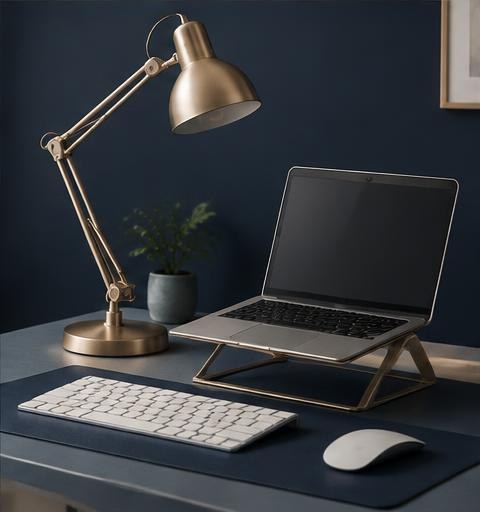
An adjustable desk lamp supplements daylight without brightly illuminating the entire room. Look for a shielded light source, a stable base and an easy-to-use dimming control. Position the lamp so that your hand does not cast a distracting shadow and the light does not shine directly into your eyes or onto the screen.
- Pros:
- Directed light makes paperwork easier to see and can be adjusted as daylight changes.
- Cons:
- An incorrectly positioned lamp can instead cause glare and take up usable work surface.
Prioritise fit, sufficient working space and good visibility. Then check which addition is genuinely missing. Readjust your workspace when your equipment or tasks change. Vary your posture and take regular movement breaks; no chair, desk or accessory alone provides a solution to physical discomfort.
Frequently Asked Questions
What should you buy first?
Address the biggest problem: an unsuitable seat height, insufficient working space or an uncomfortable screen position.
Is a sit-stand desk necessary?
No. A suitable fixed-height desk may be sufficient; even then, vary your posture and break up prolonged periods of sitting.
Can a dining table serve as a workspace?
Yes, provided that the height, legroom and lighting are suitable. Put away separate equipment after use without pinching cables.
Some links on this page are partner links. If you buy through such a link, Cestian receives a small reward from the seller. The price you pay does not change.